Showing posts with label Apple. Show all posts

Dec 20, 2011

Apple MacBook Air 13 with Thunderbolt

The 2011 MacBook Air addresses nearly every concern anyone could lob at its predecessor. It's still light on ports, the missing SD slot on the 11-inch model is a drag, and no, it isn't cheap, but this machine is fast, efficient, and not to be underestimated. It's a supermodel with a law degree from Columbia, a hunky motorcycle racer who looks good in leathers yet is also a concert pianist -- whatever your passion it won't disappoint, all while making a lot more room in your bag. More room for what? Well, your life, for starters.

When last we tested an Air, the 13-inch model with a 1.83GHz Core 2 Duo processor scored a 2,717 on the GeekBench benchmark. This new 13, configured with the default 1.7GHz Core i5 and paired with 4GB of DDR3 and a 128GB SSD, nearly doubled that: 5,373. No, that won't threaten the full-bore 15-inch MacBook Pro for sheer speed, but double the performance in nine months is a welcome improvement, living up to Apple's 2x promises here, and from what we've seen elsewhere the 11-inch lives up to its 2.5x promises as well.

The outside of this 2011 refresh of the MacBook Air is virtually indistinguishable from that which came before it. Yes, that means compromises. On the 13-inch model you'll still have to make do with but one USB port on the left and one on the right, but now that latter one is flanked by a Thunderbolt connector, Apple's implementation of Intel's Light Peak standard. This 10Gb/sec interconnect has become standard fare on all new machines coming out of Cupertino, a fact that should help to accelerate the so-far tardy uptake in support from accessory manufacturers.

The 11-inch model is likewise emblazoned, but sadly has still not been granted an SD reader, something restricted to the bigger 13. On the left you'll find a 3.5mm headphone jack, the MagSafe power connector and... nothing else. All other ports have been deemed unnecessary by Apple's designers and therefore relegated to myriad USB adapters for things like Ethernet -- though if you start relying on those you'll likely need to start packing a USB hub as well.


Like before, the omission of these ports leaves the Air free to pinch down to a delicious taper beneath the keyboard, thin enough to make for a decent cleaver when no proper blade can be found -- or when you just can't be bothered to find one. Even on the fat end it measures a mere .68-inches (17mm) thick. Or thin, rather. (engadget.com)

Apple's Thunderbolt 27inc Display

Last, and probably least, in today’s deluge of new Apple products is the Thunderbolt Display, a new 2560 x 1440 LED monitor with Thunderbolt connectivity. The 27-inch screen connect to MacBooks, just like the existing Cinema Display, but the addition of the speedy Thunderbolt I/O, it almost turns into an iMac.

The monitor has three cables. One plugs into the power socket on the wall, one sends power to your MacBook’s MagSafe port, and the third will connect with mini DisplayPort/Thunderbolt port.

This last cable not only carries the video from the MacBook, it also works the other way, giving the Mac access to the display’s three USB ports, single FireWire 800 port, Ethernet port and another Thunderbolt port, along with connections to the screen’s HD webcam and speakers.

Thunderbolt's transfer rate is 10GBps per channel. isn't enough in one I/O port?

The single Thunderbolt port will let you daisy-chain other peripherals, just like you could with old FireWire gear. Thus, the monitor can stay on the desk, hooked up to an embarrassment of add-ons, and with the connection of a single cable your lightweight MacBook Air will be transformed into a multitalented workstation. The Thunderbolt Display can costs you around $1,000.

Apple Thunderbolt Display (27-inch) [Apple]

Apple iPad 3: Production Started

The company seems unlikely to lose its tablet industry lead. Over 40 percent of smartphones owners who use RIM, Windows or Android phones prefer Apple's iPad to tablets from their current smartphone operating system makers, a survey claims (as reported by Forbes).

With iPad 3 & its high resolution display, faster processor and potential inclusion of a new Thunderbolt port heading to the shelves, Apple's season of goodwill seems set to continue. The Trefis team writes: "We believe the iPad 3 will be a high performance iPad with some attractive features such as voice recognition service Siri, presently an important feature of iPhone 4S. The new iPad might also have high resolution screen as suggested by a few reports."

Apple supplier Pegatron suffered an explosion this weekend, in which 61 workers got hurt. The facility is understood to be being re-tooled for a new product refresh in 3-4 months, approximate to the anticipated schedule for release of the iPad 3. Pegatron Chief Financial Officer Charles Lin told Reuters: "The factory has not started operations yet. Part of the facility is still under pre-operation inspection and part is running trial production." This hints at a new production line scheduled to become operational just in time for the speculated upon March iPad refresh. Potentially.

Production of Apple's new tablets has been pushed forward in factories owned by Apple suppliers, ahead of Chinese New Year on January 22-28. Initial production is thought to be in the region of 1-1.5 million, according to various reports. Despite published statements to the contrary, it remains to be seen if the explosion at a plant thought to be producing iPad 3 casings will affect Apple's intended introduction schedule, or if it will delay launch of the device. (computerworld.com)

Dec 17, 2011

Microsoft buy Nokia - 3 reasons wont & 3 reasons it might

here is 3 reasons Microsoft won't buy Nokia:

1- Microsoft gains nothing in the deal
The simplest reason Microsoft won't buy Nokia is this: Microsoft gets nothing out of the deal. Microsoft already has what it wants out of Nokia -- that the world's largest phone manufacturer settle on Windows Phone 7 as its smartphone operating system. Why spend billions for something you've already got?

2- Microsoft would be buying businesses it has no interest in
Nokia makes a lot more than just smartphones, notably inexpensive, low-end phones. That's a business Microsoft has absolutely no interest in, and would gain nothing from owning. Why buy something that would just be a drag on your business and offer no strategic value?

3- Combining corporate cultures could be nightmarish
Whenever one company buys another, there's inevitable conflict as the two firms try to merge corporate cultures and business practices. Microsoft is at a crossroads right now, facing multiple challenges, most notably in mobile, Internet search, and the cloud. The last thing it needs is that type of distraction.
Now here is 3 reasons Microsoft may take the plunge and buy Nokia:
1- Patents, patents, patents
As Microsoft knows better than any company, patents have become powerful assets. Microsoft has sued or threatened to sue makers of Android cell phones based on what it claims are patent infringements, and has gotten hundreds of millions of dollars in returns. Adding Nokia's considerable number of patents on mobile phones would make Microsoft even more formidable.
2- Nokia could be bought relatively cheaply
Paulo Santos of the Seeking Alpha investing Web site claims that because of Nokia's market woes, Microsoft could buy Nokia relatively cheaply. He figures that even paying a 50% premium, Microsoft would pay $21 billion. Given that Nokia is sitting on what Santos says is $6.6 billion in cash, and that Microsoft would likely sell off Nokia's telecom equipment division, that's not an outrageous amount for what Microsoft would get. Consider that Google is buying the smaller Motorola Mobility for $12.5 billion, Microsoft could almost be considered as getting a good deal.
3- Microsoft needs to follow Apple's and Google's lead
With Google buying Motorola, Microsoft will be the only major maker of smartphone operating systems that doesn't also manufacture hardware. Apple, RIM, and now Google all make phone hardware as well as smartphone operating systems. As Apple has long shown, if you make the hardware and the software, you can design the best possible user experience. So in buying Nokia, Microsoft would be more likely to do the same.

HTC lost to Apple in Patent case

Taipei, Dec. 17 (CNA) The United States International Trade Commission (USITC) said it has decided to review in part a final initial decision it had issued earlier this year in favor of U.S. consumer electronics giant Apple Inc. over Taiwanese smartphone maker HTC Corp. According to a notice filed on its website Friday, after examining the final ruling and the record of investigations, the The United States International Trade Commission has decided to review the matter, as HTC requested in a petition, but will look at only one of the four patents involved.

The ruling issued by an The United States International Trade Commission judge in October found that Apple had not infringed on any of the four patents related to the technology used in Apple's iPhones, iPod and iPad, as HTC had claimed. Furthermore, Apple was found not to be in violation of section 337 of the Tariff Act of 1930. HTC filed a complaint with the USITC against Apple in May 2011, accusing the U.S. company of stealing four HTC patents related to functions such as power management and phone dialing. The suit was in retaliation to a similar action filed by the U.S. company against HTC in March. In June, the USITC launched probes into HTC's claims and later ruled that Apple had not violated the patents, which prompted HTC to file a petition for a review.

HTC and Apple have been locked in a series of patent litigation amid escalating competition in the global smartphone market. In the complaint filed in March, HTC was accused of infringing on Apple's patents. In an initial decision, the commission found HTC had infringed two of Apple's patents. After two postponements, the The United States International Trade Commission is scheduled to issue a final decision on the case Dec. 19. There have been concerns that HTC would lose the case, which would lead the The United States International Trade Commission to ban sales of HTC products in the company's main market -- the U.S. According to Merrill Lynch, the U.S. market accounts for 40 percent-50 percent of HTC's total sales. (By Frances Huang)

Can Nokia survive with Lumia Series?

Innovation and agility at both ends of the handset market: does this signal that Nokia is getting its act back together? Or do the achievements pale against the goings on in Apple, Samsung and local manufacturers in emerging economies?

For a moment, ignore Lumias' specifications (they don't read half bad). Don't compare them with other Windows Mango devices. Consider what it means for the company. From idea to the store shelf - the Lumia journey is a quick turnaround from handset industry standards. Benchmark it to the old Nokia, it looks like a sprint.

But the real mad dash was the slew of dual SIM phones. More than two years late into India and other emerging economies, the company has announced seven such phones since June. And though late, Nokia came good. It loaded the dual SIM phones with features: Ovi services and specific innovations. The result: it shipped over 18 million such phones since their launch.
Elop is already gushing. In a media interaction in September he claimed that the success of dual SIM phones had a "halo effect on our single-SIM phones. India has shown that brand plus team plus great execution can deliver strong results".
Nokia, which uses Symbian in its high-end smartphones, has struggled to make headway against Apple's iPhone and Android-powered phones in this highly lucrative segment. Earlier this year its CEO, Stephen Elop, described Symbian as burning platform and decided to join hands with Microsoft for the company's software needs.
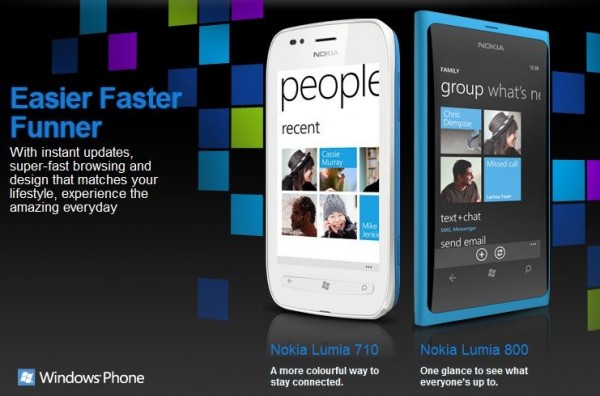
Lumia 800, a handset that the firm is currently shipping to retailers in India, is Nokia's first smartphone running on Microsoft's Windows Phone operating system. Microsoft too is struggling against iPhone and Android but hopes with the reach and channel of companies like Nokia it will be able to improve the situation by the end of 2012.
ccording to IDC, Android saw a growth of 90% over the previous quarter. Apple iOS consolidated further, with a 3.09% share of the smartphone market, compared to 2.6% in Q2 2011. IDC said that overall Indian mobile phone market grew by 12% in units shipped, over the previous quarter, to clock 47.07 million units. Year-on-year, there was a shipment growth of 13.8%.

Dec 31, 2009

iSlate-iGuide Tablet Rumor Turmoil

techtree.com - Earlier this month, Financial Times reported that Apple had booked Yerba Buena Center for Arts, San Franscisco for a major product announcement on January 26, 2010. Fox News confirmed this with its Apple-based source that the company is holding big event but no details about product were obtained. However, Google China's ex-chief Kaifu Lee wrote on his blog that an informed friend told him that Apple Tablet looks like 10.1-inch iPhone screen with awesome UI. Honestly, just like many others, we had enough of Tablet rumors.

As per Lee's blog post on his blog, the Apple Tablet will be iPhone-esque touchscreen bearing tablet with amazing UI, 3D graphics, virtual keyboard, video conferencing, eBooks, Internet and other functions. All this will come at sub-$1,000 price and most likely be announced on January 26, 2010. It's being said that Lee's current investment venture - Innovation Works has Foxconn

Earlier, MacRumors stated that the Apple Tablet would most likely be called iSlate for the domain acquired by Apple. And now dug up an old Apple trademark which points at iGuide Media, LLC, Delaware-based company. The iGuide Media company's trademark ownership carries signature of Apple's Senior Trademark Specialist Regina Porter.

It appears like iGuide is likely to be some service related to Apple Tablet since the trademark filing reveals computer hardware and computer software for accessing, browsing, searching, recording, organizing, storing, transmitting, receiving, manipulating, streaming, reproducing, playing, and reviewing audio, video, games, music, television, movies, photographs, and other multimedia content. (full story)

Aug 25, 2009

Apple Tablet to be available this September

Apple has always managed to keep a lot of things secret around its campus but what really isn't a secret anymore is the fact that Apple will be launching a Tablet soon.

Even though Apple has previously denied that it would ever be planning to enter the Netbook market, it still doesn't keep us away from thinking that Apple is probably working on something more catchy and innovative, that would eventually turn out to be a Tablet media device.

mac-tablet-conceptAccording to 9to5mac, the new Apple Tablet device may have already been previewed by an un-named analyst and that he predicts for it to be announced by Apple at an event somewhere in September.

The un-named analyst has also suggested that the Tablet device will be shipped in November, for a price of around $700-$800 and will focus on experiences such as Movies, E-book reading and Gaming. (with Thanks)

Analysis: Apple, AT&T and Google Voice

Apple on Friday posted its response to the Federal Communications Commission's Google Voice iPhone app inquiry on their Web site, and the company finally made it clear what they have against Google Voice-type apps: Apple doesn't want anyone messing with their stuff.

Their argument sounds oddly plaintive: Apple "spent a lot of time and effort" developing their phone interface, so they don't like that Google "replac[es] the iPhone's core mobile telephone functionality and Apple user interface with its own user interface for telephone calls, text messaging and voicemail."

A tiny violin plays for Apple. But the line is clear: Apple sees their platform as their house. Software developers are guests, and they can't rearrange the furniture. The iPhone is not a completely open platform - but only fools ever believed it was.

There's a lot of fun in Apple and AT&T's responses to the FCC's inquiries. For one thing, the FCC made the common error of thinking Google Voice is a VoIP program. It isn't; it's a complicated sort of universal messaging system mashed up with a voicemail server and some other stuff.

AT&T declares that "AT&T does not have direct knowledge of the particular features or functionalities of that application," and that "we look forward to learning more about Google Voice." Apple chimes in that "Apple does not know if there is a VoIP element in the way the Google Voice application routes calls and messages."

Ba-dum-ching! It's practically "Google Voice - what's that?"

Apple, meanwhile, also runs through a list of VoIP programs they do approve of (such as Skype) as part of their argument that Google Voice isn't VoIP, it's a denigration of Apple's hard work at building a phone interface. (full Coverage)

Apple’s Time Capsule at 2TB

Apple has updated the storage space of what appears to be its flagship backup appliance, also known as the Time Capsule.

apple-time-capsuleThe Time Capsule by Apple allows users to backup the data on their Macs and PCs wirelessly and also allows them to share the storage space as a wireless drive on their Mac computers, PCs, iPhone or Apple TV.

The new model is now available for a price of $499 and offers a server-grade storage of 2 Terabytes, double the capacity of its previous model but at the same price. The old-model of the Time Capsule is now available for only $299.

It also supports the new features introduced for Time Capsules earlier this year, namely the simultaneous dual-band Wi-Fi which makes the Time Capsule work on dual bands at the same time and Guest Networking, which enables one to setup a secondary network for guests and visitors. (with Thanks)

Jul 21, 2009

Best Free iPhone Twitter Apps

There's only one Twitter, and there's only one iPhone OS, but for some reason there are more iPhone Twitter apps than you can shake a stick at. We took a look at the best free ones, and discovered that you can get quite a lot for your lack of money—as long as you don't mind an occasional banner ad or prompt to upgrade to a paid version.

twitter-buttons Twitter may be simple—posting 140-character messages and reading them from your contacts isn't very involved—but you'll still need to ask a lot of questions to find the mobile app that's right you. Can it display hot trending topics? Does it let you follow and unfollow others? Does it have an integrated Web browser? Can it shorten your tweets? Does it let you easily post a Web address you saw in Safari? Does it allow multiple accounts and UI themes?

Some iPhone apps even let you do things you can't when tweeting from your PC. Most can display "nearby" tweets, even letting you decide how near or far their maximum distance should be. You can include your exact location with your tweets; some apps, such as the excellent Twitterrific, also let you include a map link.

These apps also let you tweet a photo taken on the spot with your iPhone, but none of the free ones lets you post video from your 3GS —currently only the exorbitant ($5) Twittelator Pro lets you do that. We'll be posting an in-depth review of that as well as of another paid app, the crowd-pleaser Tweetie, in the near future. But as you'll see in the reviews below, there's a free Twitter client that will please all but the most demanding tweeps.  (full Story)

Jul 17, 2009

Lenovo ThinkPad T400s

The wheels were set in motion for the advent of the ThinkPad T400s ($1,995 direct) the minute Lenovo launched the ThinkPad X300 (and subsequently, the X301). A larger version of that highly sought-after 13-inch business ultraportable was the next logical step. At the same time, though, the flagship ThinkPad T400 desperately needed an update, so it's fitting their paths would intersect. Lenovo just added an "s" to the model name, but the system changes are dramatic. The ThinkPad T400s takes the X300's exquisitely thin dimensions and widens them with a 14-inch LED widescreen. Certain features such as a FireWire port, an extra card slot, and options for discrete graphics aren't available on the T400s. Luckily for those who can't do without these things, the old T400 models will still be around.

Lenovo ThinkPad T400S : AngleDesign
Above everything else, the T400s is an aesthetic overhaul. Taking the brilliant engineering that went into the X300 and applying it to a 14-inch model was something Lenovo aficionados were waiting for. It measures exactly one inch thick (13.3 by 9.4 by 1 inches, HWD) and that includes optical drive. It and the Apple MacBook Pros are the only laptops that can pull-off these compact measurements without sacrificing the optical drive (a dual-layer DVD burner in our test unit; a Blu-ray reader is also available).

At 3.9 pounds, the T400s is officially the lightest laptop with a 14-inch screen, a title that was previously shared by the Toshiba Tecra R10-S4401 (4.2 lbs) and the Samsung X460-44P (4.2 lbs). More compelling is that the T400s is over a pound lighter than the original T400 (5.2 lbs), with the Dell Latitude E6400 (5.6 lbs) and the HP EliteBook 6930p (5.3 lbs) heavier still.

You may wonder how the T400s's bland-looking exterior can possibly be considered an aesthetic makeover. Well, you have to look beyond its all-black frame. Stripping the black from a ThinkPad would have been like stripping its brand identity, as Lenovo found out when it tried out a platinum version of its now-defunct ThinkPad Z61m. Likewise, Apple abandoned its black MacBook—certain colors will forever be paired with a particular brand. The T400's chassis is fortified with carbon and glass-fiber, making it both accident-proof and long-lasting. Within the rigid frame is an inner metallic skeleton called the Roll Cage, a concept similar to that used in cars to keep the occupants (in this case, the processing components) from harm. These engineering feats, perfected in X300, have been carried over to the T400s.

The 14-inch LED widescreen is energy efficient and thinner than that of the T400, yet it's not susceptible to bending. The panel is bright and its colors are sharp, and much of the credit belongs to the 1,440-by-900 resolution (the same as the T400). The 1,280-by-800 (or WXGA) resolutions found in the Tecra R10-S4401 and the X460-44P aren't as sharp. Meanwhile, you can find similar resolutions in the Dell E6400 and the HP 6930p. Just as black is synonymous with ThinkPads, so is the magnificently built keyboard, Lenovo's signature TrackPoint pointing stick, and the soft mouse buttons. Lenovo has added texture to the touchpad, which makes it more enjoyable to use than the standard one found in the T400. A ThinkPad's typing experience simply has no equal. (Next: Features and Performance)

Jul 10, 2009

The 5 Most Interesting Mobile Failures of the Past 5 Years

In five years as PCMag.com's phone analyst, I've reviewed more than 500 products. Some have been excellent. Some have been awful. And some have been really interesting failures, the kinds of things that were just a twist or turn away from success. (Read my previous column for a list of true successes.)

Interesting failures are just as fun to review as fabulous successes, because they show ways the world didn't go. Maybe somewhere out there is an alternate reality where no parent would dare send her six-year-old to first grade without a phone to call Mom, or one where small startup companies can bring cool phones to the U.S. market, or one where geeks get a wireless carrier that fulfills all of their high-tech dreams.

None of those worlds are our world, though. That said, I found five products over the past five years that are peeking through from those alternate realities. Do you remember other fascinating failures? Tell me in Talkbacks below.

My top five failures:

Helio Kickflip. Helio was probably the biggest letdown of my five years in mobile. At first, it was supposed to be a new wireless carrier that brought super-powered Asian phones to geeks—hooray! Then they scrapped that whole idea in favor of bringing midrange Asian phones to some demographic they couldn't quite identify. Uh, yay. Its first phone, the Kickflip, didn't actually work. The Helio Ocean worked brilliantly, but by that point, the whole edifice was crumbling. To this day, no carrier has taken up the mantle of offering super-powered phones to geeks in the USA.

Curitel Identity. The first mass-market Linux phone, with fabulous personality-shifting technology and removable covers that actually contained software, the Identity was a perfect example getting slapped down by the way our market works. First, it took the inventors years to find a manufacturer that would build it. Then, when they sealed a deal with Korean manufacturer Curitel, the big wireless carriers wouldn't even look at their product. The Identity vanished, and nothing has ever been quite like it.

Sony Mylo (both the first and second versions). Sony's insane internal structure sometimes results in insane products. For instance: I assume Sony isn't allowed to make cell phones, because only Sony Ericsson can make cell phones. So Sony made the Mylo, which makes calls with Skype over Wi-Fi networks. The Mylo's complete failure shows that if you're selling a communications tool nowadays, it better connect everywhere—and that means having a cellular radio on board. (The iPod touch gets away with being Wi-Fi only, in my mind, by being an iPod and gaming device first.)

Motorola ROKR E1. The first iTunes phone was a hideous disaster and a warning to the rest of the industry that Apple doesn't play well with others. The ROKR started out late, with the launch so poorly managed that a bunch of press were shipped to Miami to see a phone that was yanked from the podium days before it was supposed to appear. When Apple actually launched the ROKR, it took away its thunder within minutes by introducing the iPod nano on its heels. The E1 itself was an uninspiring paste-job, slapping a crippled version of iTunes onto an existing midrange Motorola phone. It almost looked like Apple wanted this phone (and the whole idea of non-Apple products running iTunes) to fail.

LG Migo. For a brief moment in 2005, a bunch of manufacturers were selling cell phones to six year olds. This may sound crazy, but I think there are safety-related reasons for giving little kids simple devices with which they can call Mom or Dad. Apparently, I am the only person who thinks so, because the whole product category has basically vanished. Hysterical news reports from the UK about how cell phones will boil a small child's brain didn't help, even though these kiddy phones were meant to be used for only a few minutes at a time.  (story Link)

Apr 29, 2009

How safe is your Mac? 15 easy way to fixe security risks

How safe is your Mac? Maybe not as safe as you think. Here are some quick ways to beef up its security.

One of the commonly touted advantages to using a Mac is that it's more secure and less prone to malware than a PC running Windows. It's easy to see where this attitude comes from: The prevalence of viruses and network attacks against Windows machines is greater by several orders of magnitude.

In fact, a recent Trojan horse hidden in a pirated copy of iWork '09 that circulated on peer-to-peer file-sharing sites was big news because it was the first Macintosh malware to be widely circulated on the Internet (though there have been a handful of proof-of-concept malware iterations over the past few years). But the much lower rate of malware and network attacks isn't proof that the Mac is immune to such things.

Indeed, there has been an ongoing debate over the years as to whether Mac users truly have more-secure machines or simply enjoy "security through obscurity" because they represent a relatively modest fraction of all computer users. While this debate will continue -- and there are valid arguments on both sides -- this article isn't about that debate; it's about a pair of simple questions: "How safe is your Mac?" and "How can you make it safer?"

The truth is that Apple Inc. does provide a pretty safe platform. The company leverages a number of advanced technologies to keep users and their data safe from harm. For a detailed list, see this Apple white paper (download PDF). But no system is perfect, and there are a number of security holes -- many of them easily closed -- that are common on Mac OS X systems. Here are 15 ways to fix the most frequently exploited security risks and protect your Mac.

Note: Unless we specifically say a tip applies only to Leopard, it should work with most recent versions of OS X, though the actual steps involved might vary somewhat.

Disable automatic opening of "safe" downloads in Safari

Probably one of the biggest Mac holes is in Apple's Safari Web browser, which downloads files that you click on or that are embedded in a Web page. That presents a problem because, by default, Safari is designed to open "safe" files as soon as they've been downloaded. Unfortunately, the definition of "safe" includes package-installer and disk image files, which can contain malware. If the malware files are embedded in a Web site, they could be downloaded and opened automatically.

Apple has done a good job of combating the potential damage in Mac OS X Leopard, which automatically detects disk images and applications that have been downloaded from the Internet via Apple's applications (Safari, Mail and iChat). However, to be truly safe, one of the best and easiest things you can do is disable the automatic opening of such files in the Safari preferences.

From the Safari menu in the menu bar, select Preferences, click the General tab, and uncheck "Open 'safe' files after downloading." From now on, you'll need to manually open downloaded files by double-clicking them in your Downloads folder or in Safari's list of downloaded items.

Make sure not to click the "Do not show" option in the warning dialogs that Leopard displays when you open downloaded files; that way, you'll always be warned the first time each downloaded item is opened. (Note: This tagged file feature was introduced in Leopard and doesn't apply to earlier versions of Mac OS X.)

A similar security feature in Leopard is support for code signing, which places a digital signature in application files; your Mac checks them at launch to be sure that they haven't changed and alerts you if they have. Although many third-party applications don't yet support this, it is a powerful feature, and you should pay attention to any such warning. As with the tagging of downloaded files, do not click the "Do not show option" if you do see one of these alerts. (full Story)

How to recycle your Mac

When your Mac is no longer the shiny new kid on the block, there's no shortage of ways to extend its useful life. An old Mac can work as a recipe-storage library, for instance, and that antique iBook can be a backup drive.

But when you've run out of ways to reuse or repurpose your old Mac, what's the best way to recycle it? Here are a variety of solutions--from low-effort to time-intensive--that'll keep your conscience and your closet clear.

Don't Throw It Away

California, Maine, Maryland, Minnesota, Oregon, Texas, and Washington now have laws regulating where and how you can dispose of unwanted electronics. But in most others, it's still legal to throw your computers in the trash. According to a recent --60 Minutes report, an estimated 130,000 computers end up in the garbage annually.

There are all kinds of good reasons not to make yours one of them: lead, mercury, and hexavalent chromium are three of the best. These substances, which are embedded in our computers' assorted parts, are just a few of the toxins that can be released into the environment if an old computer or iPod is just tossed onto a scrap heap and burned. Once in the groundwater or air supply, heavy metals and PCBs released by improperly disposed-of computers linger as cancer-causing compounds.

Erase Your Hard Drive

Before you dispose of an old computer, make sure you wipe it clean of all your data.

The first step is to back up all the data on the device's hard drives. Either copy it to your new machine or pick up an external hard drive and use that as a repository for all the old files. To duplicate the contents of the old drive, use Time Machine. Or if your old system doesn't have OS X 10.5, try Carbon Copy Cloner (payment requested; Macworld rated 4.5 out of 5 mice ).

Now erase your footsteps. Start by deauthorizing iTunes. You don't want to later realize that you have one less machine you can play your old, pre-iTunes Plus music on. Then deauthorize any third-party programs you'll want to reinstall on your new system.

Next, wipe your hard drive. Track down the installation discs that came with your computer (or use the ones that came with any OS X upgrade you purchased). Insert Disc 1 (CD) or the installer disc (DVD), launch Installer, and reboot the machine using the software on the disc. Go to the Installer menu, choose Open Disk Utility, select the hard-drive icon in the column on the left, click on the Erase tab, and then click on Options. The 8 Way Random Write Format will scramble your data nicely. (story Link)

Axiotron Modbook Tablet - Modbook Tablet Is a Designer's BFF

One look at Axiotron's slate Modbook tablet and it's clear the company has given Apple's 13-inch entry-level laptop the full Steve Austin treatment. Well, minus the 20:1 bionic eye with infrared capabilities. Nevertheless, the end result is a better, (slightly) faster, and, yes, even stronger Mac tablet. Sure, it's theonly Mac tablet for now, but this baby is certain to give anyone who dabbles in the dark graphical arts exquisitely rendered heart palpitations.

Book2One minor nit before we start examining the goods. Some reviews have described the Modbook as a touchscreen device. While, technically, this is true, it's important to note we're not talking capacitive touching here. In fact, you can only use the provided Wacom digitizer pen and its 11 nibs as an input device. While that lack of skin on screen action, coupled with its high price, probably keeps the Modbook from being a truly mainstream device, it is by no means a deal breaker.

The tablet touts both Bluetooth and the standard two USB ports should you want to use it with a full-size keyboard and mouse. Hell, you can even mount it on your wall or hook it up to an external monitor via the standard mini-DVI port (like we did), if you prefer a slightly larger screen to show off your squiggly Garfield drawings.

BookIn fact, given that the Modbook is essentially a niche device, it's still impressively versatile. It comes pre-loaded with Apple's Leopard, including the OS's surprisingly accurate built-in Inkwell handwriting recognition software. Using their formidable engineering kung fu, the folks at Axiotron also crammed a GPS unit into the Modbook, which -- ahem -- lets you geo-locate to your heart's content.

As far as looks go, Modbook stays true to Apple's overriding aesthetic sensibilities. It's clear Axiotron has done some Frankensteining here and there (the bottom portion of the tablet is identical to the MacBook while the top half is basically a Wacom Penabled Digitizer), but the Modbook still looks like something Steve Jobs could potentially unveil from an envelope. Both the shell and interior display frame are built from aircraft-quality magnesium alloy -- not that anodized crap. Axiotron also went for the trifecta of metal plating -- that's nickel humping copper and topped off with a little chrome for good measure. While that combination certainly attracts smudges, it's also extremely scratch-resistant.

WIRED: Built-in GPS. Badass handwriting recognition software accurately renders chicken scratch into coherent words. Durable screen and shell makes porting this pricey device a relatively worry-free ordeal.

TIRED: Did we mention this is a pricey ($2,290) device? Stylus pen occasionally loses connectivity or freezes and requires reset. Heavy; weighs as much as a 15-inch Macbook Pro (5.5 lbs). $2,290, axiotron.com (Story Link)

Apr 27, 2009

Key for Switch to Apple – 07

1. Should I buy a Mac-Intel PC now or wait until the new systems running the new OS X 10.5 (code named Leopard) arrive?
There's no particular need to wait because Tiger will work just fine. If you decide you want Leopard later on you have to buy.

2. Can I run Windows and Mac OS simultaneously toggling between the two?
The short answer is no. Boot Camp, Apple's downloadable application (in beta now but expected to come standard with Leopard), lets you switch between OSs but you have to reboot with each switch. You can run both OSs simultaneously with a utility, like Parallels Workstation.

3. Can I play my favorite Windows games, like Doom3, on a Mac? What other games can I play?
You'll be happy to hear that you can play your favorite Windows games on the new Mac-Intel systems, even against other Windows users. Keep in mind though that the 3D performance is directly affected by which graphics GPU you're using. And in a Mac-Intel, the highest end graphics card is the mid-range ATI Mobility Radeon X1600, which isn't as fast as the nVidia GeForce Go 7900GTX graphics system now available in systems like our Editor's Choice, Dell XPS M1710.

4. At home, I have two Windows PCs networked via WiFi. How difficult will it be to add the Mac-Intel into the mix? Will I be able to share files between my Windows PCs and my Mac-Intel whether it's running Windows OS or Mac OS?
Setting up your new Mac-Intel machine onto your PC network is easy. The Mac OS includes built-in support for Windows Sharing, which allows Macs to access files on your other Windows PCs. However, you need to enable this file-sharing option in OS X yourself since it's not a default factory setting. Enable File Sharing in Windows XP to view your Mac files.

Third party solutions are also available, like DAVE by Thursby software, which makes identifying Microsoft networks and sharing hard drives even easier in OS X.

5. Can I still use my old printer/scanner/wireless router or do I need to invest in a device?
First, check the Apple site or your peripheral manufacturer's site and see if they have Macintosh support and download the software for that specific model. Your wireless router will work with both Macs and Windows PCs without any additional software installations.

6. I do a great deal of work in Photoshop, and heard it runs slower on a Mac-Intel computer. Is this true?
Right now, yes that is true. The Universal Binary version of Adobe Photoshop CS2 is expected to address this disparity but will not be available until sometime in 2007. If you work primarily with OS X and rely heavily on Photoshop, you will notice a slow down. In that case, it might make more sense for you to wait until the next revision comes out. For a list of all the universal binary applications, check out (http://guide.apple.com/universal/).

7. Will I be able to see my IE bookmarks in both Mac OS and Windows OS?
Bookmarks are not synchronized between the Mac OS and Windows OS. You will have to import your bookmarks into the Mac OS and update them accordingly.

8. Does it slow the computer down to have both OS's open?
Technically, you cannot have both OS's open simultaneously. You can use Virtualization software like Parallels which is a PC emulator program that runs within OS X. Doing this though will place extra strain on your Mac's resources.

9. Is the Mac surround sound interface compatible with consumer electronic devices such as home theater receivers? I have a nice 5.1 living room speaker set up already.
The included optical out port on the iMac, Mac mini, and MacBook Pro gives you surround sound capability and easily connects to home theater stereos provided you have an Optical Mini Jack To TosLink Cable.

10. Can I boot Mac OS X on a PC?
No. Mac OS X is not available for Windows-based PCs. (story Link)

Key for Switch to Apple – 06

MAC APPS

I won't attempt to give you much information here about specific applications that come with your Mac, but there are a few things worth mentioning:

Preview is the application that, by default, will open your PDF files (along with image files). You can generally use it instead of Adobe Reader; you'll find that it opens much faster than Adobe Reader does (what doesn't?). And unlike Adobe Reader, it permits light editing of PDFs—you can delete or resequence pages in the right-hand sidebar. It's also nice for generating a quick slideshow: In the Finder, highlight a bunch of image files, then double-click on any of them. They'll all open simultaneously in Preview, with a sidebar of thumbnails on the right that will let you quickly scroll through them.

Disk Utility (in the folder \Applications\Utilities) is what you'll use to format flash drives and external hard disks. For highest speed and best compatibility with the Mac, choose Erase, and Volume Format, Mac OS Extended (Journaled). If you need the backup device to readable by a Windows PC, choose MS-DOS format (performance won't be as good). By the way, Disk Utility also lets you make your own DMG files—use the menu option File | New | Disk Image from Folder. What's really nice about this is, you can encrypt your .dmg file; this is great for storing sensitive data.

Well, that just about scratches the surface. Mac aficionados will note with displeasure that I haven't said a word about Time Machine, Dashboard widgets, Spaces, Automator, or any of several thousand other things you're probably going to like. Watch this space. (story Link)

Key for Switch to Apple – 05

MISCELLANEOUS WINDOWS-TO-MAC ISSUES

Here are some questions that come up quite a bit, in my experience. They're a bit hodgepodge, but you can't argue with experience.

Command and control. Often enough, if you used a Control-key combo in Windows, Command plus the same other key will work in OS X. For example, Ctrl-x, -c, and -v to cut, copy, and paste a selection becomes Cmd-x, -c, and -v. Cmd-a selects all, whether you're in Finder or an application.

Know what you're closing. Ctrl-w to close a window in Windows is Cmd-w to close a window on the Mac. Quitting an open application requires not just closing its windows but actually telling it to quit—that's Cmd-q from the keyboard, or a right-click-accessible mouse command from the application's Dock icon.

Jump around. Alt-Tab to switch among open windows is Cmd-Tab on the Mac. Actually, Cmd-Tab switches among open applications. Use Cmd-~ to switch among open windows in a particular application. But once you get used to the Exposé feature, you might not care about this anyway.

Erase bidirectionally. Most Mac users seem to use the Delete key exclusively. It's in the same spot on a Mac keyboard that the Backspace occupies on non-Mac keyboards, and it deletes characters backward from the cursor, just like a Backspace key. But Windows users are used to having a Delete key that deletes forward as well. If you miss your Windows-type Delete key, use Fn-Delete on a Mac to delete forward.

All-stop. If you're old enough to remember when the Break key on a PC did something, you'll want to know about Cmd-period on a Mac. In many applications, it cancels whatever is in the midst of happening. Try that or the Escape key before you try what's next.

Quit it. Ctrl-Alt-Delete on a Windows PC (to bring up the Task Manager when something seems to be frozen) is Cmd-Option-Escape on a Mac: It will bring up a list of running applications so that you can force a frozen one to quit. You can also get there by choosing Force Quit from the main Apple menu.

Mac Tip 5

Monitor activity. The full functionality of Task Manager on a Windows PC is found in Activity Monitor on a Mac; that's in the folder \Applications\Utilities. It's worth dragging that one to the Dock for quick access. If your Mac slows down, or if loud fan activity suggest that something is overwhelming its processor, Activity Manager will show you every currently running process and allow you to force-quit the culprit.

Create aliases. What Windows calls a shortcut, Mac calls an alias. You can make one by control-clicking on the icon for a file or folder, then choosing Make Alias—or simply by pressing Cmd-l (that's a lowercase L). Unlike a Windows shortcut, a Mac alias knows the actual identity of the target file, not just its location (the Mac assigns a unique ID number to each file); therefore, you can move the target file around, or even rename it, and the alias will still work.

Grab a screen. There's no Print Screen button for screen captures, but there is this abstruse keyboard shortcut: Cmd-Ctrl-Shift-4 (you'll get used to it). Once you press that, you can trace any area of the screen for capture to the clipboard; then you can paste it into, say, a document or photo-editing software. If you don't bother to press the Control key, the screenshot will be saved to your desktop as a file instead. If you press 3 rather than 4, you'll automatically capture the whole screen. And if you're in no mood for any such finger contortions, you can use the Grab application in your Utilities folder.

Clean up drive-image detritus. Unlike a Windows PC, your Mac won't offer to remove the unused icons on your desktop, so let me tell you about one type of file that might begin to accumulate there needlessly: the DMG file. If you download applications from the Web, a lot of them will download in the form of .dmg files (disk-image files). When you double-click on the DMG icon, it opens in the form of a virtual disk—a temporary folder that your Mac treats like a newly inserted disc or flash drive. If you want to keep the contents of the virtual disk, you have to drag them to another folder (such as your Applications folder or your desktop); doing so will copy them. The virtual disk can then be "ejected"—just drag it to the trash or press the Eject icon that appears next to the drive in a Finder window to do that. But you'll still have the DMG file that spawned the virtual disk. You don't need it anymore—go ahead and drag it to the trash, too.

Get info. On a Windows PC, you can get system information from various selections on the Start menu—information such as how much memory your computer has, or what kinds of hardware are built into it. To get this information on a Mac, select About This Mac from the Apple menu. The window that immediately pops up will tell you which version of OS X you're running, among other things. Then press More Info to open the System Profiler utility, which will glut you with details.

Type worldly. There's a world of hidden characters and symbols behind the Option key. For example, press Option-e and any vowel you type next will have an acute accent. Press Option-u and any vowel you type next will have an umlaut. Press Option-4 (the dollar-sign key) and you'll get ¢. The results for any of these will differ if you also hold down the Shift key. To learn more about keyboard combinations and diacritical marks, see Apple's guide.

For laptops only: Don't be dim. Have you noticed that when you're running on battery power, the display keeps dimming every few minutes? Yeah, that's annoying. Turn it off in Apple | System Preferences | Energy Saver, under Options, where you can uncheck Automatically reduce the brightness....

Come on and zoom. There's a keyboard shortcut for zooming the whole screen. First, press Cmd-Option-8 to toggle it on (you'll never need to do that again). Now press Cmd-Option-= to zoom. Press Cmd-Option-minus to pull back out. (story Link)

Key for Switch to Apple - 04

SAVING, PRINTING, FINDING

Here are some more handy tips for getting around & using Mac OS X and the applications on it.

Mac Tip 3

Uncover options. By default, the Print and Save dialogs for most applications are pretty sparse-looking. That's deceptive. See the downward-pointing triangle in the blue box? Click on it to display a lot of options that are otherwise hidden/

Mac Tip 4

PDF it. While you're in the Print dialog, note the inconspicuous button marked PDF. Clicking on it will give you a drop-down menu that includes Save as PDF. What this means is that anything you can print, you can convert to a PDF instead of printing. No more printing and losing online receipts.

Search with Spotlight. This hard drive search tool needs an article all its own, so I won't try to do more than tell you what it is. Your Mac maintains a Spotlight index that includes not just filenames, but also every word within each file, and Spotlight will fetch results accordingly. Click on the magnifying glass in the top right-hand corner and enter a word to begin. Spotlight is also the engine that drives the little search bar you'll find at the top of any Finder window. When you perform a Spotlight search that way, your results will be displayed with the option of limiting them to the current folder, and with the option of searching file contents or only filenames. We'll go further into depth about Spotlight's capabilities in a future article.

If you're accustomed to using Google Desktop on a Windows PC, you know that it does something Spotlight can't: It displays your results with snippets of the surrounding text, just like a regular Google search does. You can download a Mac version of Google Desktop to gain this feature, but I've found that doing so slows things down a bit, perhaps because Spotlight and Google Desktop are both continuously indexing your files. A nice alternative is to download the freeware application SpotInside, which uses Spotlight's index but displays results in context with snippets of text, Google-style.

Manage windows with Exposé. Exposé is another feature that can save you a lot of time. One key will sweep aside all open windows to reveal your Desktop (until you press the key again); another key will push all your open windows out of each other's way so that you can choose among them by hovering the pointer over them; a third key will do the same, but only for windows in the front-most application. Which key does which function will depend on your Mac, and you can change it under Apple | System Preferences | Exposé and Spaces.

Change every shortcut. Well, that might be going a bit far. But you really can change and create all kinds of keyboard shortcuts. Under Apple | System Preferences | Keyboard, you can create a keyboard shortcut for any preexisting menu item. This can be done system-wide or for individual applications. Users of Microsoft Office for Mac should note that the Office apps have their own applets for accomplishing this. (story Link)